In the previous article, we saw that the tileset is the image that contains the tiles. Now we will see some simple tips to keep in mind at creating our tileset.
Dimensions
The first thing is to decide the dimensions of each tile: 16×16, 32×32, 48×48, … Really, this is very subjective and it depends on each game, personal preferences and desired results. We are not limited to use same length for width and height; we can use, for example, tiles of 128×64 pixels.
An aspect to consider on this point is the screen resolution which our game is designed for. For example, if we go to project our game in a resolution of 320×240 pixels, we can use tiles of 16×16 pixels, whereas if our game is designed for a 1280×720 screen, maybe we must use bigger tiles, for example of 64×64 or 128×128 pixels.
Graphics editor
It’s possible to use any graphics editor program which we are comfortable. In my case, I usually use Aseprite and GIMP for pixel art, although there are many apps on the market, both payed and free. Some of them are designed exclusively for pixel art, like Aseprite or Piskel, and others ones are more generic like GIMP or Krita.
One of the thing I consider that helps a lot is the possibility of showing a grid. This is a basic functionality supported by the most editors.
Color palette
I have not much to say here because I have not knowledge about graphic art. I simply comment it because a good choice on out color palette will give a consistent aspect to our games and it will look much better.
Tileset with Aseprite
From the time I discovered this tool, I have been using it more and more in my projects. In my last game, Rainbow Diamonds, the most have been drawn with Aseprite. The app have a good and intuitive user interface that allows to work easily.
For this example, I will use an image of 128×128 pixels with tiles of 16×16 pixels, so I can have until 64 tiles. The first thing I do to work with tiles, is setting the grid in order to use them as guide for each tile. We can do that on the options View > Grid > Grid Settings. We set the width and height of each tile, in this case both are 16 pixels, and press OK. Now is the 16×16 grid is showed.

Using the drawing tools, we create the tiles we need. For this example, as you can see on the below image, I have drawn tiles for ground, water, a bush and a house.
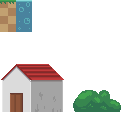 As we can see, the bush and the house occupies more than a tile. This is not a problem, because what we will made, is to put them togheter at the time of design our scene, so each element will be drawn correctly. What matters is that a single tiled does not contains parts of different elements.
To finish, we export the file to an archive named tileset.png.
On the next tutorial, we will design the scene using the tileset created in this tutorial.
Regards,