The file which defines the design of the scene is the map file. There are many ways to generate this file from our tileset.
Options
We can create the map file manually, or we can use any of the existing generic map editors, or even use the map editor included in the game engine (if our game engine provides it).
Own generation
If we create the map manually or with a custom editor we are completely free to define the map format according with our necessities. We need at least two basic functions: identifing each tile of the tileset, and set how the tiles composes the scene. For example, a simple approach could be having a single tile, and a text file with ones and zeros indicating which parts of the scene are «filled» and which ones are not:

Making our custom map implementation implies we also need to write the neccesary code to read and draw the map in our game. This can be a problem for some developers because the time and knowledges we need to do it.
Generic editor
If we use a generic map editor we get the advantage that them are programs speciffically designed for map creation and them have the neccessary tools to do it. It’s important to know if our game engine supports the maps generated with the used editor. If not, we need to write the code to read and render the maps.
Editor included in game engine
Some game engines, like Unity, GameMaker or SpriteKit have its own tiled map editor. This allows to manage all the design process from the same tool, furthermore we have total guaranty of the compatibility between the map and the game engine. Maybe a disadvantage of this approach is that we are required to use a concrete game engine.
Tiled Map Editor
In my case, I use Tiled Map Editor because it covers my necessities for levels creation and it also is supportted by libGDX, so it’s easy to use both together.
To design the scene from our tileset created on the previous article, create a new project in Tiled with Orthogonal orientation, and setting our tiles dimension: 16 pixels for width and height. The map will have 30 tiles for width and 20 tiles for height.

Save the file with the name level.tmx on the same location where tileset.png is (really is not neccessary to use the same location but it makes the work easier).
Next we must load the tileset to the project. We do it from the «Tilesets» panel, located on the bottom right side of the application. Click the icon  > Select our file tileset.png, set 16 pixels for width and height of tiles and click OK.
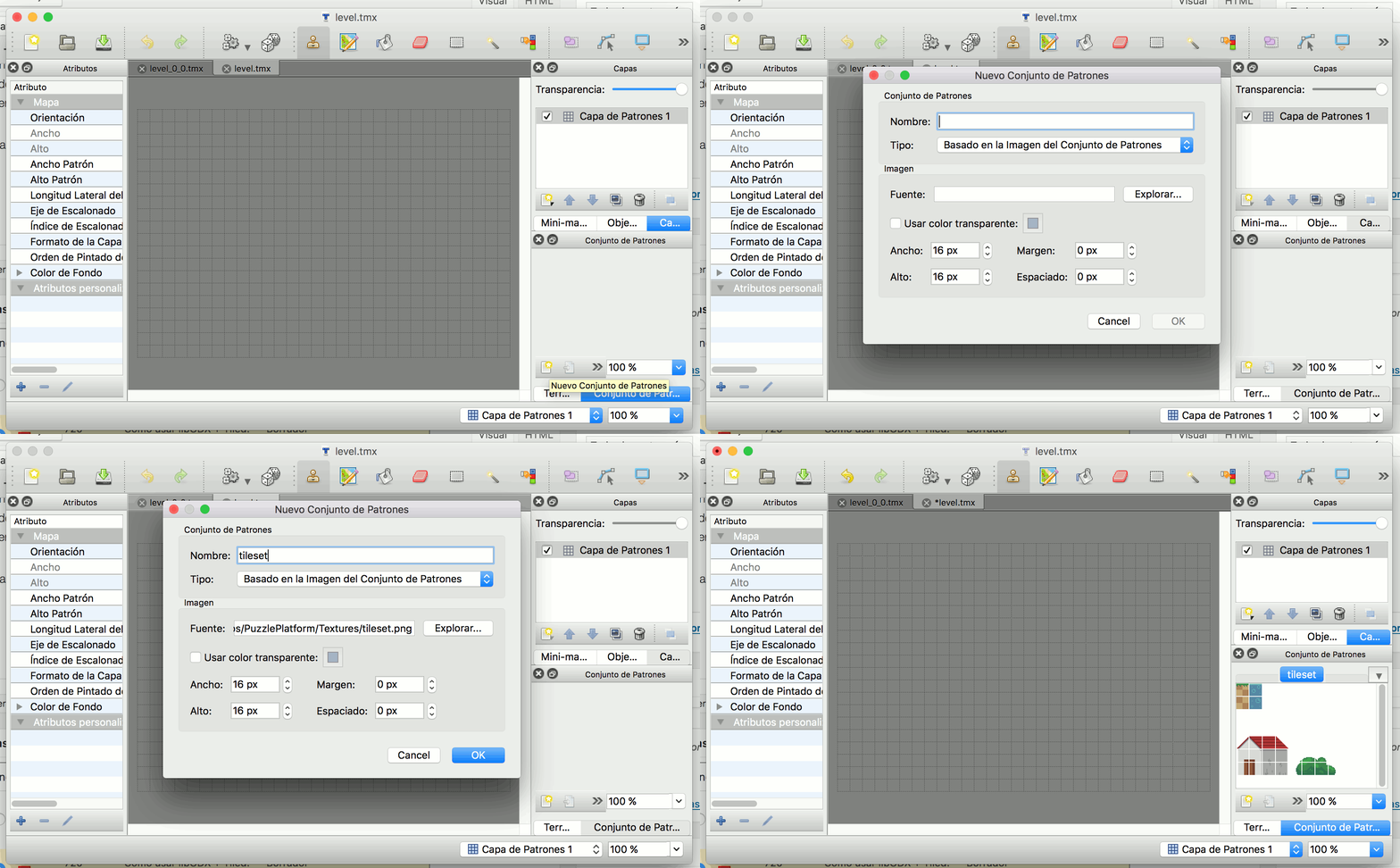
Now the tileset is showed on the Tilesets area. Using the tool Stamp Brush we draw the scene using the tiles. My composition is the next one:

In the next article we will start to draw our scene with libGDX.