When we develop software for mobile devices, we have to keep in mind that these devices have reduced specs if we compare its with traditional PCs. An aspect in which we have to put special attention is the program size, because probably many users will decide to install our software depending on it.
In the case of video games, we find that we normally use a large number of images, what will cause our program occupies a large space on disk. Therefore, it’s interesting to know tools that help us to optimize our program resources.
pngquant
While the development of my first video game, I found that the size of my executable file was so large, although my game was nos so long. Searching information about how to reduce this size I came to pngquant.
pngquant is a command line tool, available for OS X, Windows and several GNU/Linux distributions, that allow us to reduce our PNG images with lossy compression. It is an open source library; we can get its code from GitHub. Furthermore, there are some graphics tools which make easiest our work with pngquant if we aren’t confortable with command line. For example, TinyPNG is an utility that allow us to optimize our images directly from its website.
How to use pngquant
The first step is to download the tool for our system directly from its website: http://pngquant.org/. In my case, I will download the binary for Windows.
Once downloaded, we unzip the library at the place we want to install the tool. For example, in my case this place is «C:\ desarrollo\ herramientas\ pngquant».
When we unzip the library, we will have the content below:

As we can see, in addition to the library itself (pngquant.exe), provides a number of .bat scripts that will allow us to use the library quite quickly. Simply select the image you want to optimize and drag it onto these batch files, and automatically optimized image copy is created.
Let’s see an example:
- We take the following unoptimized PNG image. It is a file of 288 KB.

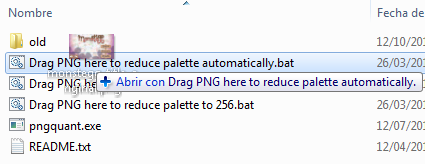
Original image: 288 KB - We drag the image and drop it over script «Drag PNG here to reduce palette automatically.bat» of pngquant.
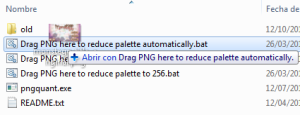
Drag and drop over pngquant script - This automatically generates two optimized images, with suffix «-fs8» and «-or8»:

Optimized image (fs8): 80 KB 
Optimized image (or8): 75 KB - As we can check, the size of the image file has been decreased more than 70% in both cases. Furthermore, I have to recognize that in a visual comparison I cannot distinguish changes.



Installing pngquant
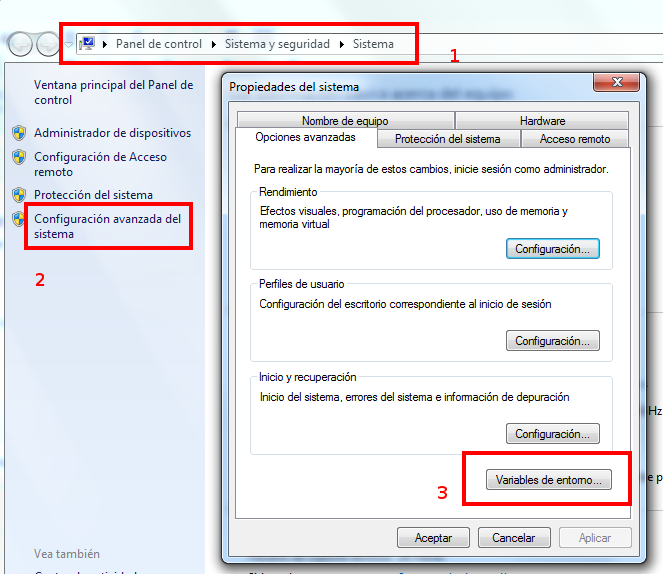
To can use pngquant from command line, we can install it on the system. For that, we simply add the path of pngquant installation to the system path (Windows):
- Access to «Control Panel» > «System and security» > «System»
- Once here, select «Advanced system configuration»
- It will open «System properties». Select the tab «Advanced options» and next «Environment variables».
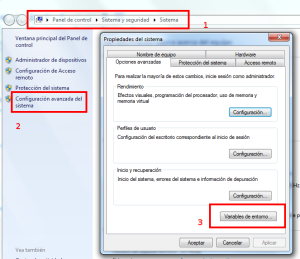
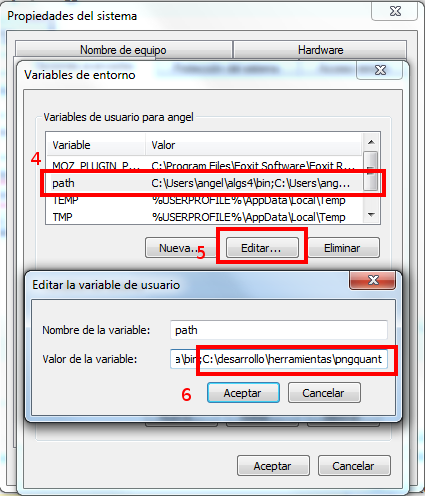
Access to window of environment variables for Windows - In the window «Environment variables», select the variable «path» and click «Edit…» button.
- In the new window we can edit the value for that variable. To include pngquant in the system path, we must to add the character ‘;’ followed by the path where we have unzip pngquant. In my case «C:\ desarrollo\ herramientas\ pngquant»:
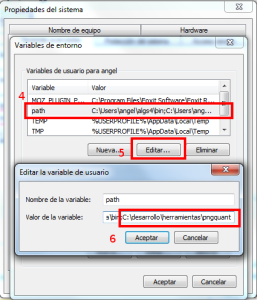
Add pngquant to system path
After instalation, we can use the library by typing «pngquant» on command line:

To know more
Of course, the use of pngquant does not end here. To go deeper in the use and the possibilities about this tools, you can check its website: http://pngquant.org/