In the previous entry about apache POI, we saw how to create excel files with Java and Apache POI. This time, we’ll see how to customize the style of these excel files.
How to create a style for a cell
The class that represent the style for a cell is HSSFCellStyle. It allow us to set properties specific of a cell: border type, border color, content align, background color, etc. To create a cell style, we only need a reference to the excel workbook:
HSSFWorkbook workbook = new HSSFWorkbook(); HSSFCellStyle style = workbook.createCellStyle(); |
Once style is created, we can call its set...() methods in order to set the style properties. The class HSSFCellStyle has a serie of constants that will help us to configurate the style. Similarly, the class that allow us to manage colors is HSSFColor:
// Sets the cell background style.setFillForegroundColor(HSSFColor.BLUE_GREY.index); style.setFillPattern(HSSFCellStyle.SOLID_FOREGROUND); |
Probably, we also want to modify the properites of the text that cell contains. To do so, we must create a font style (below).
How to create a font style
Font styles are represented by class HSSFFont. This class give us the control over the typography used font: text color, bold, italic, etc. Same to cell styles, we create the fonts from the excel workbook:
HSSFFont font = workbook.createFont(); |
Once we have the font, we need to assign it to a cell style:
style.setFont(font); |
Complete example
As example, we are going to generate an excel file like this:
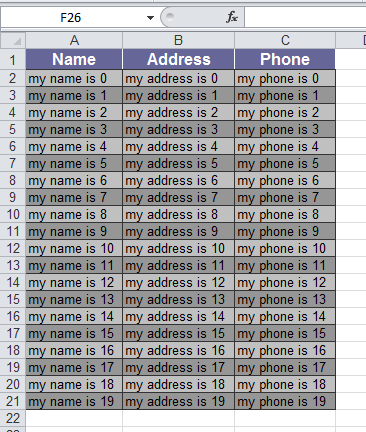 We use an auxiliary class, called
 FakeDataProvider, that simple give us some test data to fill our excel table:
11 12 13 14 15 16 17 18 19 20 21 22 23 24 25 26 27 28 29 30 31 32 33 34 35 36 37 38 39 40 41 42 43 44 45 46 47 48 49 | public final class FakeDataProvider { /** Return the columns name for the table */ public static List<String> getTableHeaders() { List<String> tableHeader = new ArrayList<String>(); tableHeader.add("Name"); tableHeader.add("Address"); tableHeader.add("Phone"); return tableHeader; } /** * Return values for the table * * @param numberOfRows Number of rows we want to receive * * @return Values */ public static List<List<String>> getTableContent(int numberOfRows) { if (numberOfRows <= 0) { throw new IllegalArgumentException("The number of rows must be a positive integer"); } List<List<String>> tableContent = new ArrayList<List<String>>(); List<String> row = null; for (int i = 0; i < numberOfRows; i++) { tableContent.add(row = new ArrayList<String>()); row.add("my name is " + i); row.add("my address is " + i); row.add("my phone is " + i); } return tableContent; } } |
The class responsible of the excel generation is ExcelGenerator. It has an only one public method, generateExcel(), that returns the generated workbook:
15 16 17 18 19 20 21 22 23 24 25 26 27 28 29 30 31 32 33 34 35 36 37 38 39 40 41 42 43 44 45 46 47 48 49 50 51 52 53 54 55 56 57 58 59 60 61 62 63 64 65 66 67 68 69 70 71 72 73 74 75 76 77 78 79 80 81 82 83 84 85 86 87 88 89 90 91 92 93 94 95 96 97 98 99 100 101 102 103 104 105 106 107 108 109 110 111 112 113 114 115 116 117 118 119 120 121 122 123 124 125 126 127 128 129 130 131 132 133 134 135 136 137 138 139 140 141 142 143 144 145 146 147 148 149 150 151 | public class ExcelGenerator { // Excel work book private HSSFWorkbook workbook; // Fonts private HSSFFont headerFont; private HSSFFont contentFont; // Styles private HSSFCellStyle headerStyle; private HSSFCellStyle oddRowStyle; private HSSFCellStyle evenRowStyle; // Integer to store the index of the next row private int rowIndex; /** * Make a new excel workbook with sheet that contains a stylized table * * @return */ public HSSFWorkbook generateExcel() { // Initialize rowIndex rowIndex = 0; // New Workbook workbook = new HSSFWorkbook(); // Generate fonts headerFont = createFont(HSSFColor.WHITE.index, (short)12, true); contentFont = createFont(HSSFColor.BLACK.index, (short)10, false); // Generate styles headerStyle = createStyle(headerFont, HSSFCellStyle.ALIGN_CENTER, HSSFColor.BLUE_GREY.index, true, HSSFColor.WHITE.index); oddRowStyle = createStyle(contentFont, HSSFCellStyle.ALIGN_LEFT, HSSFColor.GREY_25_PERCENT.index, true, HSSFColor.GREY_80_PERCENT.index); evenRowStyle = createStyle(contentFont, HSSFCellStyle.ALIGN_LEFT, HSSFColor.GREY_40_PERCENT.index, true, HSSFColor.GREY_80_PERCENT.index); // New sheet HSSFSheet sheet = workbook.createSheet("Very Cool Sheet"); // Table header HSSFRow headerRow = sheet.createRow( rowIndex++ ); List<String> headerValues = FakeDataProvider.getTableHeaders(); HSSFCell headerCell = null; for (int i = 0; i < headerValues.size(); i++) { headerCell = headerRow.createCell(i); headerCell.setCellStyle(headerStyle); headerCell.setCellValue( headerValues.get(i) ); } // Table content HSSFRow contentRow = null; HSSFCell contentCell = null; // Obtain table content values List<List<String>> contentRowValues = FakeDataProvider.getTableContent(20); for (List<String> rowValues : contentRowValues) { // At each row creation, rowIndex must grow one unit contentRow = sheet.createRow( rowIndex++ ); for (int i = 0; i < rowValues.size(); i++) { contentCell = contentRow.createCell(i); contentCell.setCellValue( rowValues.get(i) ); // Style depends on if row is odd or even contentCell.setCellStyle( rowIndex % 2 == 0 ? oddRowStyle : evenRowStyle ); } } // Autosize columns for (int i = 0; i < headerValues.size(); sheet.autoSizeColumn(i++)); return workbook; } /** * Create a new font on base workbook * * @param fontColor Font color (see {@link HSSFColor}) * @param fontHeight Font height in points * @param fontBold Font is boldweight (<code>true</code>) or not (<code>false</code>) * * @return New cell style */ private HSSFFont createFont(short fontColor, short fontHeight, boolean fontBold) { HSSFFont font = workbook.createFont(); font.setBold(fontBold); font.setColor(fontColor); font.setFontName("Arial"); font.setFontHeightInPoints(fontHeight); return font; } /** * Create a style on base workbook * * @param font Font used by the style * @param cellAlign Cell alignment for contained text (see {@link HSSFCellStyle}) * @param cellColor Cell background color (see {@link HSSFColor}) * @param cellBorder Cell has border (<code>true</code>) or not (<code>false</code>) * @param cellBorderColor Cell border color (see {@link HSSFColor}) * * @return New cell style */ private HSSFCellStyle createStyle(HSSFFont font, short cellAlign, short cellColor, boolean cellBorder, short cellBorderColor) { HSSFCellStyle style = workbook.createCellStyle(); style.setFont(font); style.setAlignment(cellAlign); style.setFillForegroundColor(cellColor); style.setFillPattern(HSSFCellStyle.SOLID_FOREGROUND); if (cellBorder) { style.setBorderTop(HSSFCellStyle.BORDER_THIN); style.setBorderLeft(HSSFCellStyle.BORDER_THIN); style.setBorderRight(HSSFCellStyle.BORDER_THIN); style.setBorderBottom(HSSFCellStyle.BORDER_THIN); style.setTopBorderColor(cellBorderColor); style.setLeftBorderColor(cellBorderColor); style.setRightBorderColor(cellBorderColor); style.setBottomBorderColor(cellBorderColor); } return style; } } |
From our main class, we only need to use the ExcelGenerator.generateExcel() method to obtain the workbook, and then we write it to disk:
11 12 13 14 15 16 17 18 19 20 21 22 23 24 25 26 27 28 29 30 | public class App { public static void main(String[] args) { HSSFWorkbook workbook = new ExcelGenerator().generateExcel(); // Writing the excel to output file try { OutputStream out = new FileOutputStream("src/main/resources/ExcelWithStyles.xls"); workbook.write(out); workbook.close(); out.flush(); out.close(); } catch (IOException e) { System.err.println("Error at file writing"); e.printStackTrace(); } } } |
Style with user name
If we set an user name to the style, when we the file is open on Microsoft Excel, the style appears with the other predefined styles. For example, if we had done this:
headerStyle.setUserStyleName("Header"); |
The style had been shown like this:

Row styles
Same to cells, rows (HSSFRow) have a method setRowStyle(). If we apply a cell style to a row, the style is only applied to empty cells of the row. So if we create a cell on this row (row.createCell()), this cell will not use the row style.
Optimization
Cell styles (HSSFCellStyle) and fonts (HSSFFont) are both created on the workbook.
Is important to keep it in mind because if we need to apply the same style more than once, the right thing is to create it once and apply it to all required cells. If instead of doing that, we create the style every time we need to apply it to a cell, we will multiply the style as many times as cells are there.
On the same way, if we need to apply the same font style to more than one style, the right thing is to create it once, and then assign it to all required cell styles.
Source code
You can get the source code of the example from my GitHub repository. The shown example is Poi-ExcelWithStyles.
Saludos,